

Someone asked me today how to set up subscriber perks on Substack.
So, here’s the walkthrough.
Substack lets you create a dedicated Perks page where you can offer benefits to paying subscribers, including downloadable PDFs, discount codes, private links, and community invitations.
For this tutorial, we’re setting up one digital download: a PDF.
No complicated setup. Let’s do it.
Before You Start
You need to have payments enabled on your Substack publication to access Subscriber Perks.
You’ll also need:
Your PDF ready to upload.
A title and short description for your perk.
An image that’s at least 1200 × 800 pixels.
Subscriber Perks are currently available on your publication’s website, not in the Substack app.
Step 1: Find Subscriber Perks in Your Dashboard
Open your publication dashboard.
Click Settings in the lower-left menu.
Scroll down until you find Subscriber perks, then click Manage.

This opens your Subscriber perks dashboard.
Click Create Perk.

Step 2: Pick Your Perk Category
You’ll see five perk categories:
Discount or promo code
Digital download
Community invite
Link
Substack Live video
For this example, select Digital download.
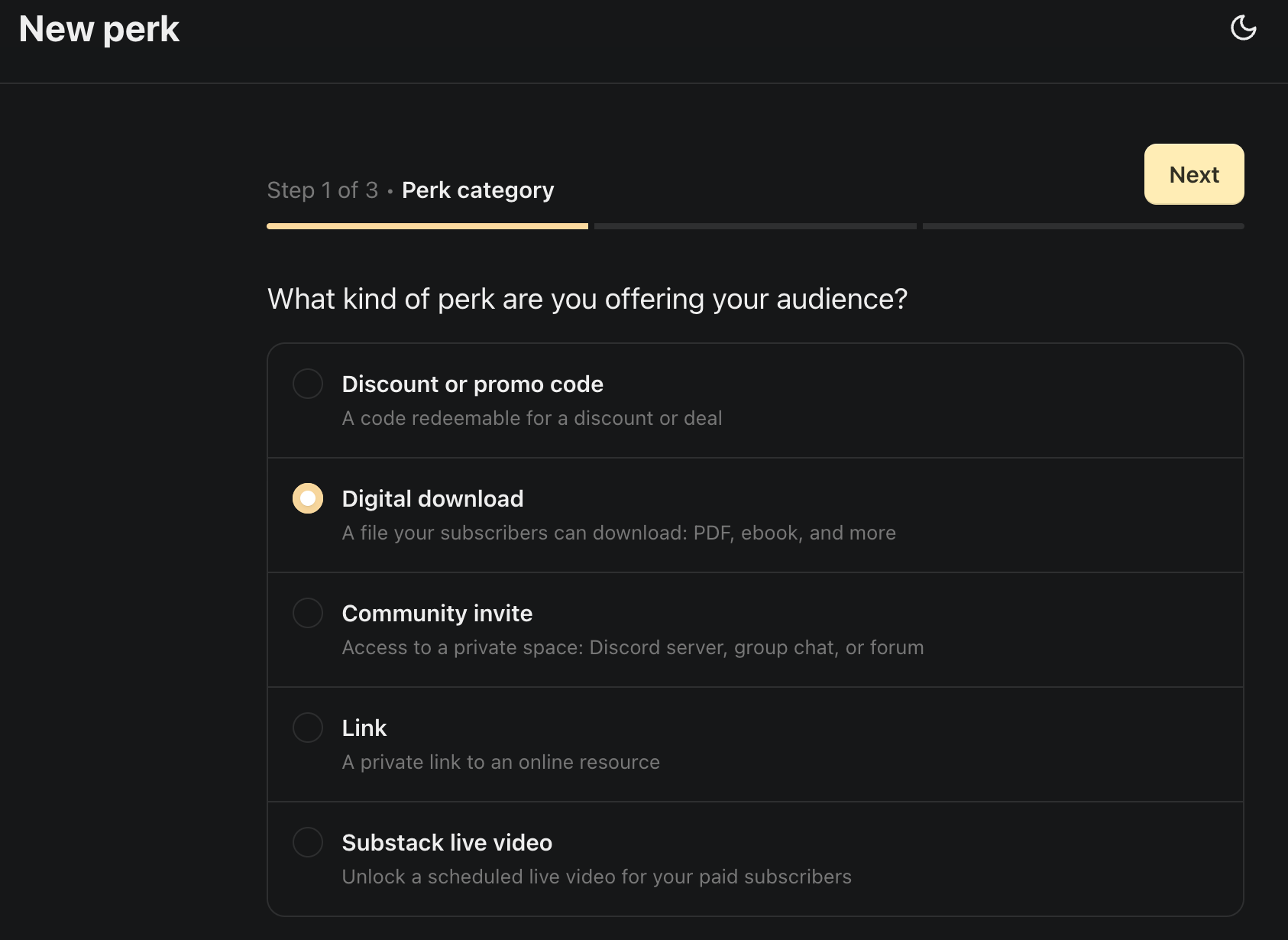
Click Next.
⚠️ Important: Choose Digital download when you want subscribers to download a file. If you’re sending them to a resource on another website, choose Link instead.
Substack allows digital download files up to 700 MB.
Step 3: Add Your Perk Details
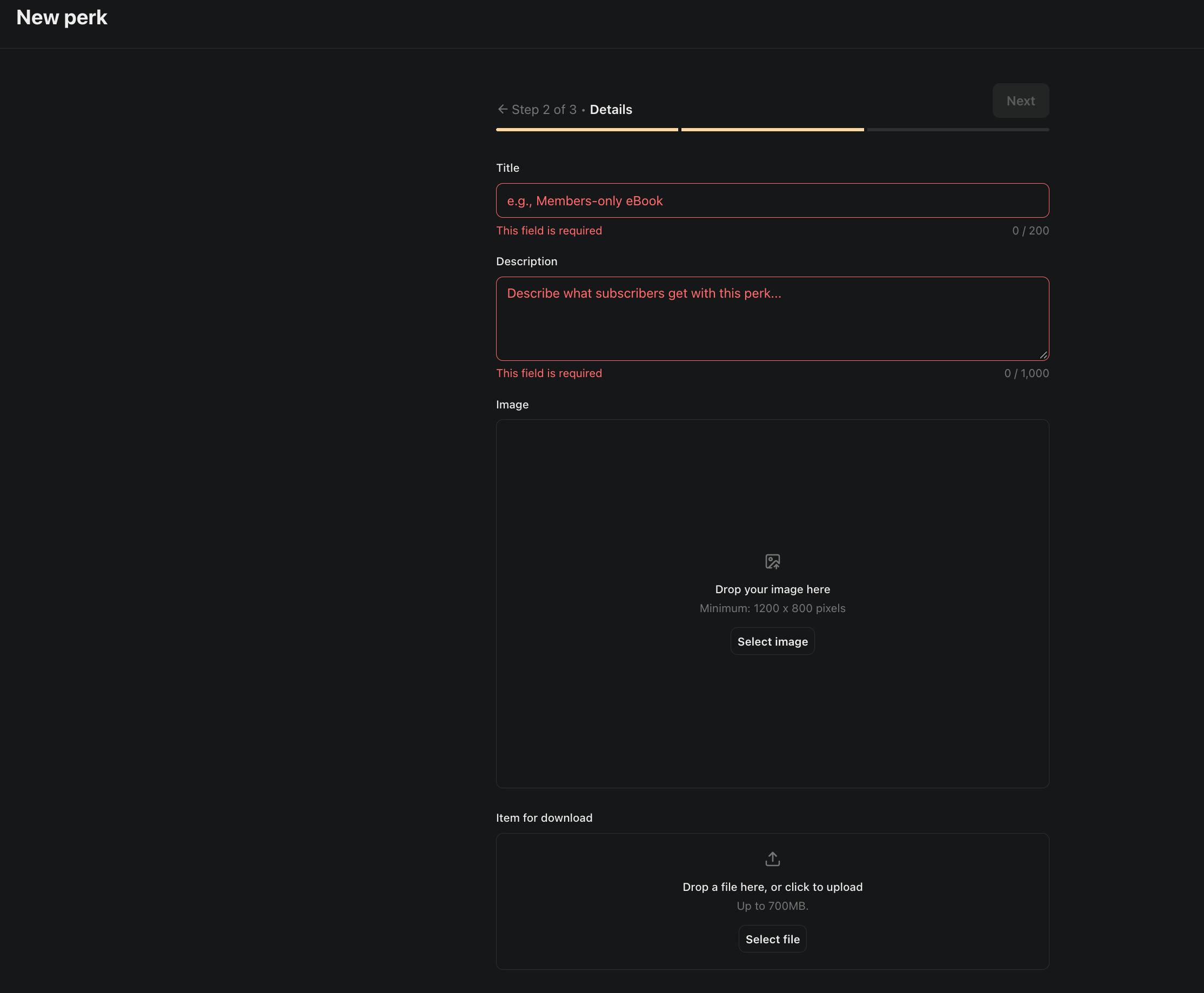
Now you’re on the Details screen.
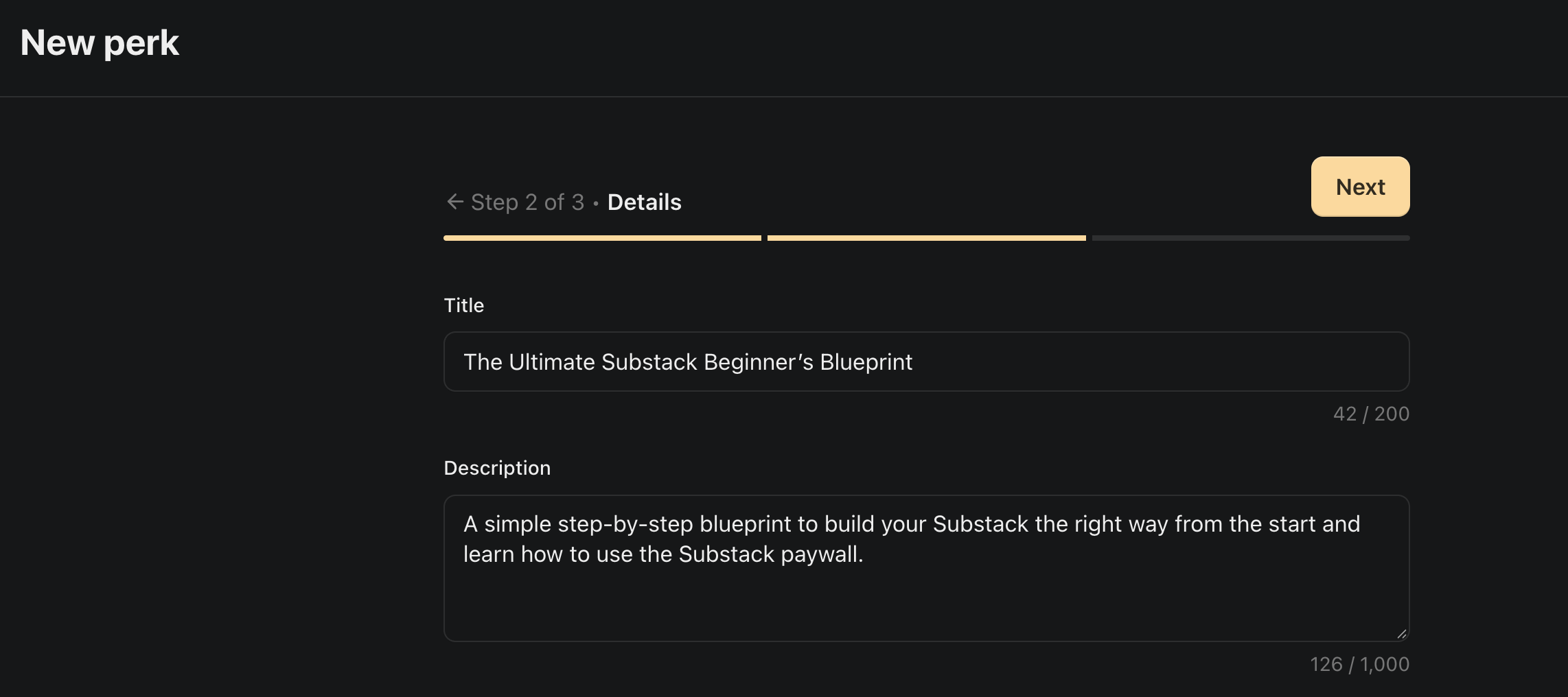
Enter a title that tells subscribers what they’re getting.
For example:
The Ultimate Substack Beginner’s Blueprint
Then write a short description explaining what the PDF contains.
Keep it specific. Your subscribers should understand what they’re about to download without having to guess.
Next, upload your perk image.
The image must be at least 1200 × 800 pixels.
Then, upload your PDF in the digital download file field.
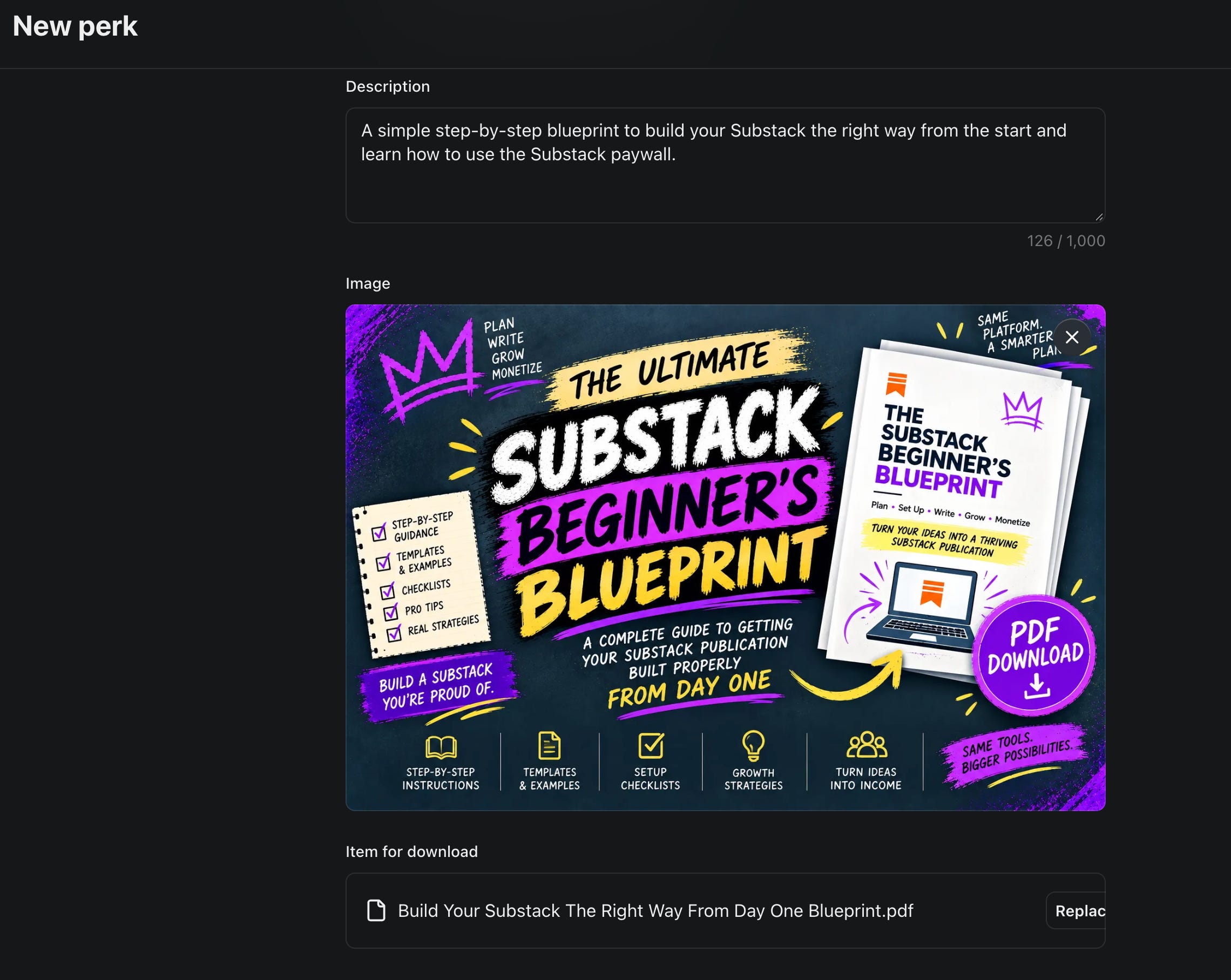
Once you’ve added the details, image, and file, click Next.
Step 4: Choose Who Can Access Your Perk
Now you’re on the Audience screen.
Substack gives you three options:
Founding plan subscribers
Only founding members can unlock this perk.
Annual and founding plan subscribers
Monthly subscribers won’t have access.
All paid subscribers
Monthly, annual, and founding members can unlock it.
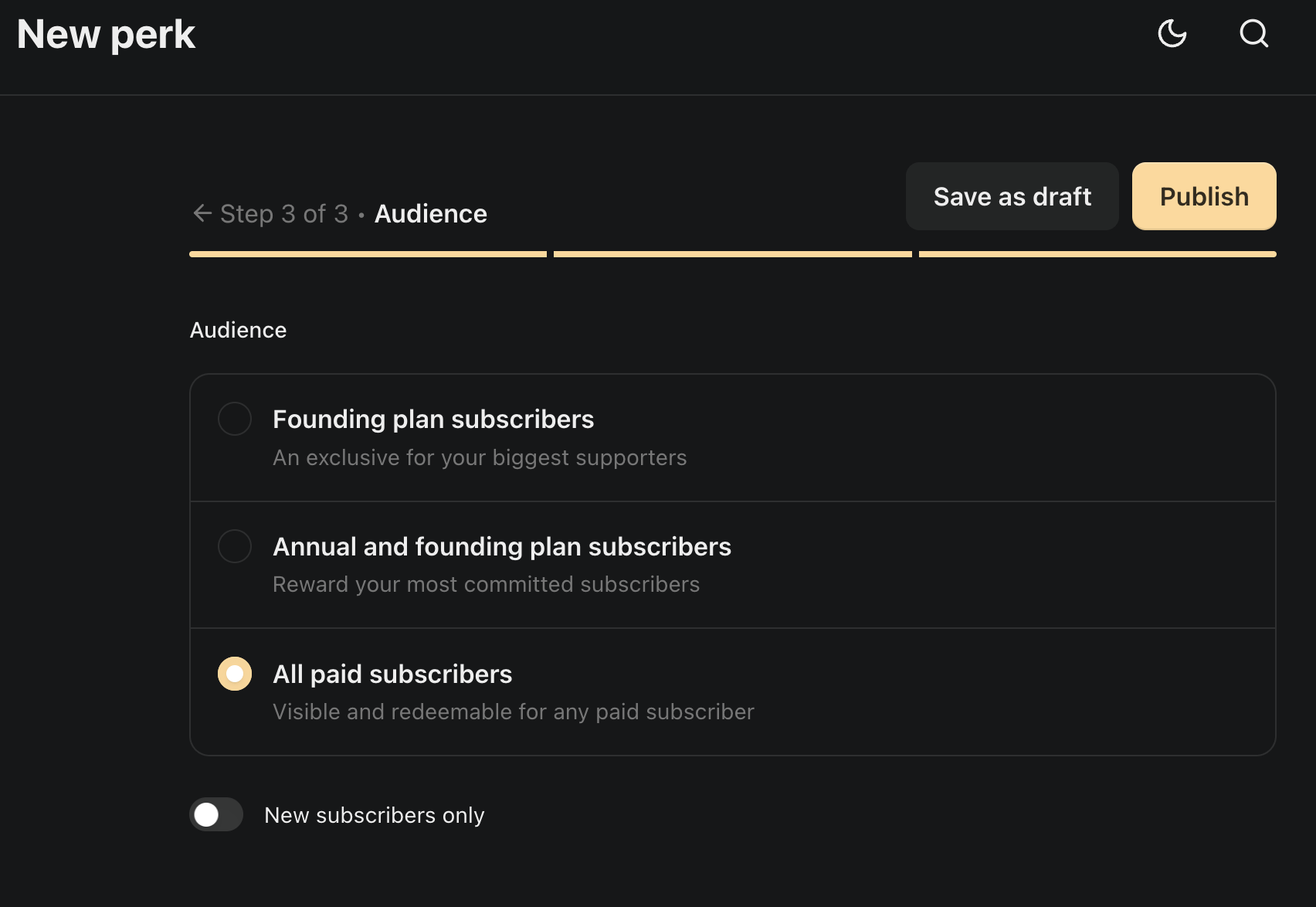
Choose the audience that matches your offer.
For example, if you want every paying subscriber to receive your PDF, select All paid subscribers.
You’ll also see a New subscribers only toggle. Turn this on if the perk is exclusively for new paying subscribers. You can then set when those subscribers can access it.
If you want existing eligible members to receive the perk too, leave that toggle off.
Once you’ve made your selection, click Publish.
Step 5: Check Your Published Perks page
Now open your publication’s website.
You’ll see a Perks tab in the navigation bar.
Click it.
Your new digital download should appear as a card with its image, title, description, and an access button.
Here’s what my published Perks page for Unstuck to Published looks like:
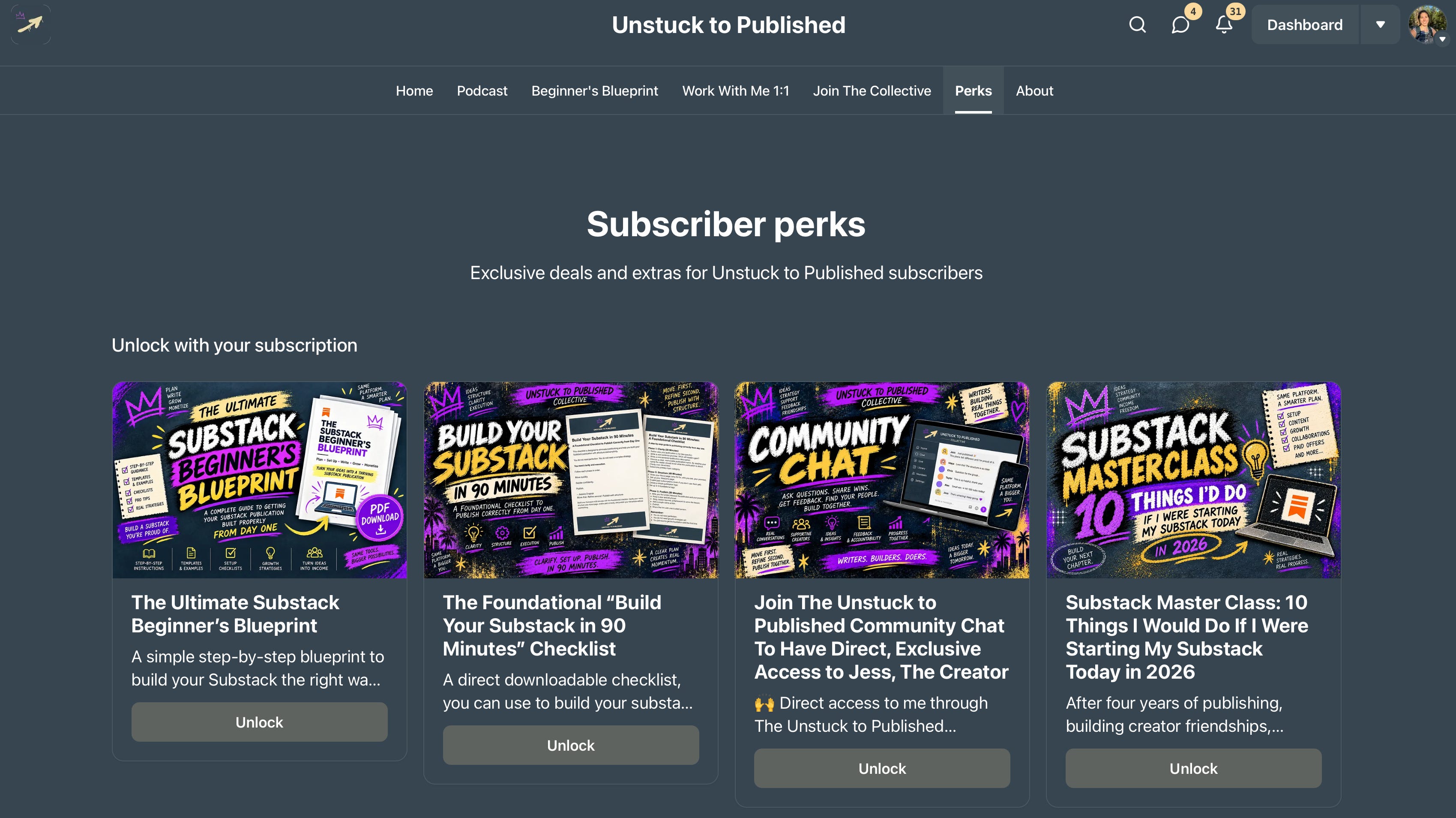
Eligible paying subscribers can click Unlock to access the perk.
Once a digital download is unlocked, they can access its download.
Free subscribers who try to unlock a paid perk will be prompted to upgrade.
You can also copy the URL of an individual perk and share it directly with subscribers.
That’s it. Your digital download is published.
Two Things To Know Before Offering Perks
1. Check payments for high-value perks.
Substack warns that subscribers may redeem perks before certain direct-debit payments have cleared.
If you’re offering something expensive, check the payment status before providing access.
2. Understand the refund policy.
Before unlocking a perk, subscribers must acknowledge that their subscription becomes non-refundable.
Substack doesn’t honor refund requests after a subscriber redeems a perk, although you can choose to issue a refund yourself.
You now know how to create a digital download, decide which subscribers can access it, and publish it on your Substack Perks page.
Thank you so much for being here. I truly appreciate you.
— Jessica
Move first. Refine second. Publish with structure.
Previous Articles & Live Episodes →
What 52 Mondays & Three Years of Sundays Taught Us About Substack

Chris B. Writes has published every Monday for more than 52 weeks.
Scan the QR code below to subscribe to Unstuck to Published →
Great tips Jess!